

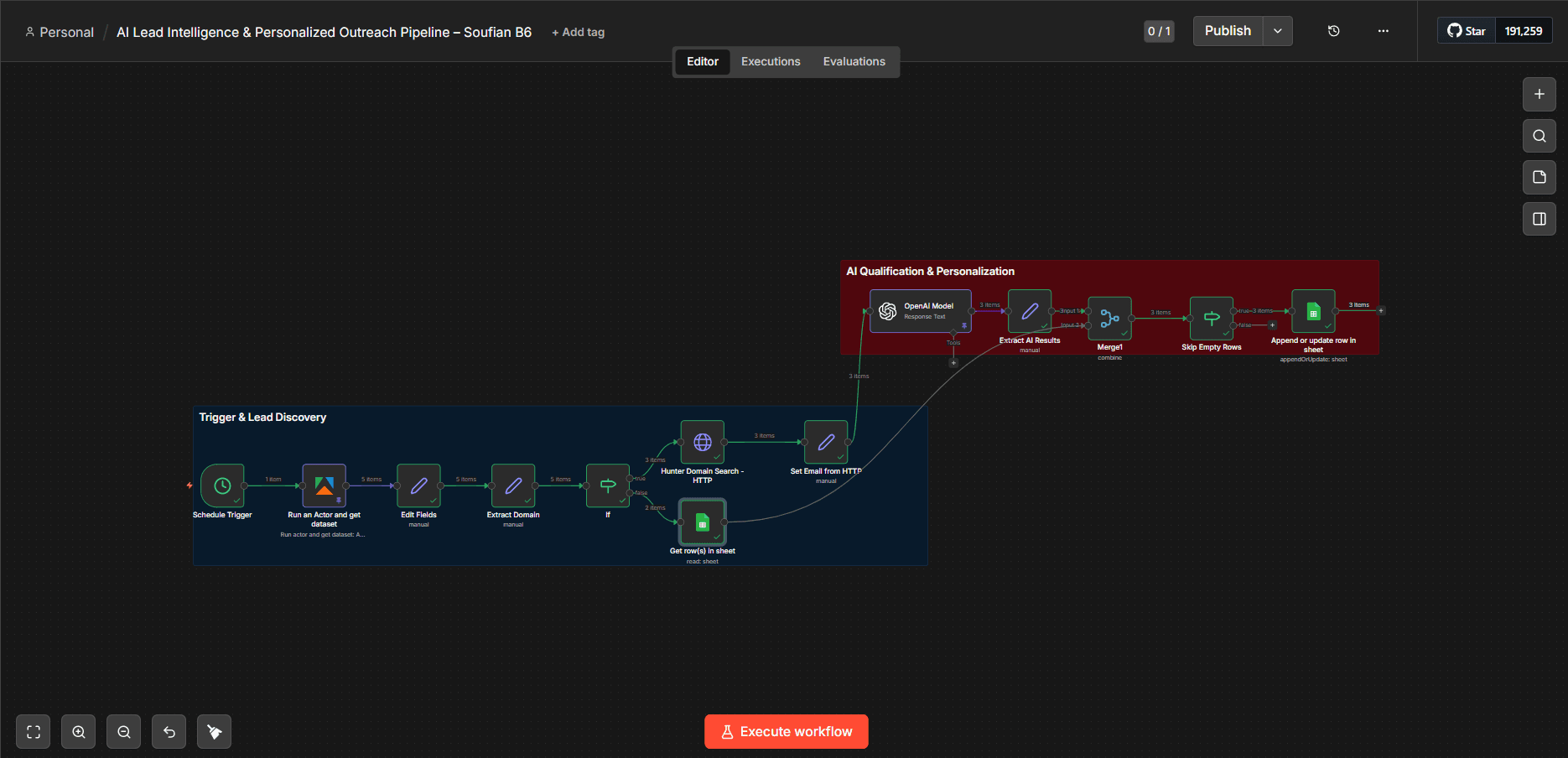
We built this exact pipeline to find our own first clients, then ran it until it broke — twice. So this isn’t the happy-path version where you wire three nodes, screenshot the green checkmarks, and call it a system. This is the one that survived contact with real Google Maps data, missing websites, and an email API that lies to you politely.
By the end you’ll have a working lead generation automation that scrapes local businesses from Google Maps, finds their email, scores each lead with AI, writes a personalized first line, and drops the whole thing into a Google Sheet you can actually work from. Then we’ll spend equal time on the four things that quietly fail in production — because that part is the point.
What is lead generation automation? Lead generation automation is software that finds, enriches, and qualifies potential customers without manual work: a trigger fires, a scraper pulls business listings, an enrichment step adds contact details, and an AI step scores and personalizes outreach — so a person reviews a finished list instead of building it by hand.
If you’d rather we just build this for your niche, that’s literally our job — but you can absolutely ship it yourself with what’s below.
Not sure this is the right first automation for your business? We map that for clients in a free 30-minute automation audit — no pitch, a written recommendation.
What we’re building (the architecture)
Nine nodes, one clean path:
Schedule Trigger
  → Apify: Google Maps scraper       (find businesses)
  → Set: map fields                  (normalize the data)
  → Set: extract domain              (pull a clean domain from the website)
  → IF: has a website?
       → Hunter.io domain search     (find an email)
       → Set: pick best email
  → OpenAI: score + personalize      (qualify + write the first line)
  → Set: parse AI JSON
  → IF: skip empty rows              (guardrail)
  → Google Sheets: append/update     (your working lead list)
Tools and what each costs (estimates, June 2026):
| Tool | Role | Rough cost |
|---|---|---|
| n8n (self-hosted) | Orchestration | ~$5–10/mo VPS |
| Apify Google Maps scraper | Find businesses | ~$0.50–$4 per 1,000 places |
| Hunter.io | Find emails from a domain | Free tier ~25 searches/mo, then paid |
| OpenAI (gpt-4o-mini) | Score + personalize | Pennies per 100 leads |
Two honest notes before you build: Hunter only finds emails for businesses that have a website, and the cheap models are plenty for a one-line personalization — you do not need GPT-4o here.
Step 1 — Trigger and scrape Google Maps
Start with a Schedule Trigger (run it daily at 9am, or swap in a Manual Trigger while you’re testing).
Wire it into the Apify node using the Google Maps Scraper actor (compass/crawler-google-places). The only inputs that matter for a first run:
{
  "searchStringsArray": ["HVAC near New York"],
  "locationQuery": "USA, New York",
  "maxCrawledPlacesPerSearch": 25,
  "language": "en"
}
Keep maxCrawledPlacesPerSearch low (25) while testing — every place costs money, and you don’t need 500 rows to know whether the logic works.
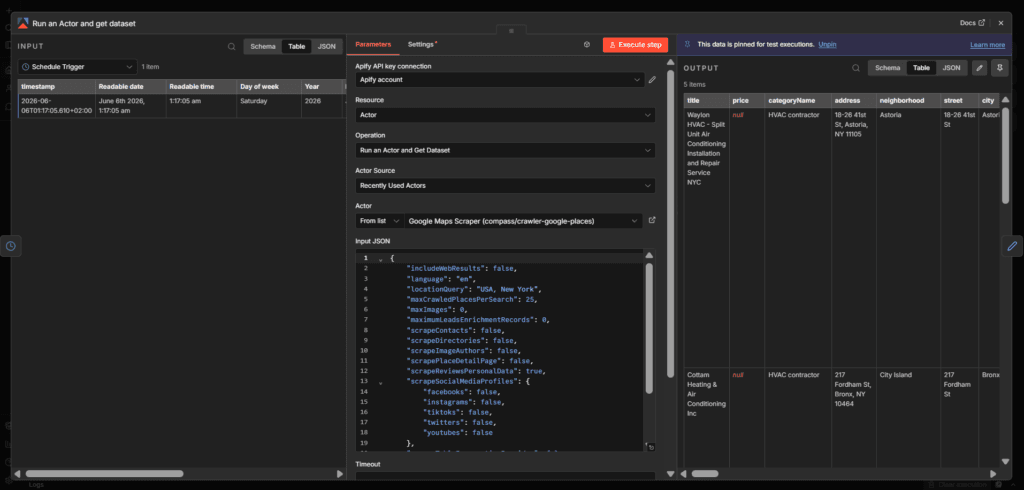
Why Google Maps and not LinkedIn? For local-service niches (HVAC, plumbing, dentists, contractors) Maps is the highest-signal source you can scrape cleanly: it gives you phone, website, hours, and review count — and review count alone tells you who’s leaving money on the table.
Step 2 — Normalize the data and extract a domain
Add a Set node (“Map fields”) to rename the messy scraper output into clean fields you control: Lead Name, Company, Website, Email (default N/A), Source, Timestamp, Status (New Lead), and a Lead ID (use the domain or website so you can dedupe later).
Then a second Set node (“Extract domain”) to strip a website down to a bare domain Hunter can use:
{{ $json.Website && $json.Website !== 'N/A'
   ? $json.Website.replace(/^(?:https?://)?(?:www.)?/i, "").split('/')[0]
   : null }}
That regex turns https://www.cottamhvac.com/repair/ into cottamhvac.com. Small step, but Hunter fails silently if you hand it a full URL.
Step 3 — Branch on “has a website?”
Add an IF node: does domain exist and is it not empty?
- True → go find an email (Step 4).
- False → in the naive build, these get dropped. Hold that thought — it’s the first thing we fix in production.
Step 4 — Find the email with Hunter.io
Use the native Hunter node, operation Domain Search, with “Only Emails” on, authenticated with your Hunter credential. (You’ll see a lot of tutorials hardcode the API key into an HTTP Request URL. Don’t — that’s a leaked secret sitting in your workflow JSON forever. Use the credential.)
Then a Set node to pick the best result and keep it sane when nothing comes back:
Email:            {{ $json.data.emails.length ? $json.data.emails[0].value : 'N/A - Not found' }}
Email Confidence: {{ $json.data.emails.length ? $json.data.emails[0].confidence : 'N/A' }}![Hunter node output showing a found email with a confidence score] Alt text: Hunter.io domain search node output in n8n showing a business email address and confidence score](https://www.orchient.com/wp-content/uploads/2026/06/Screenshot-2026-06-06-002539-1024x489.png)
Step 5 — Score and personalize with AI
This is where a lead list becomes a lead pipeline. Add an OpenAI node (gpt-4o-mini) with a system prompt that does three jobs and returns strict JSON:
You are a lead qualification expert for HVAC businesses in New York, USA.
Tasks:
1. Lead Score (0-100): how good a fit is this business for our service?
2. AI Summary: 1-2 sentences on the business.
3. Personalized Message: one warm opening line referencing something specific.

Output JSON only:
{ "lead_score": number, "ai_summary": "string", "personalized_message": "string" }
Then a Set node to parse it back out:
Lead Score:           {{ JSON.parse($json.output[0].content[0].text).lead_score }}
AI Summary:           {{ JSON.parse($json.output[0].content[0].text).ai_summary }}
Personalized Message: {{ JSON.parse($json.output[0].content[0].text).personalized_message }}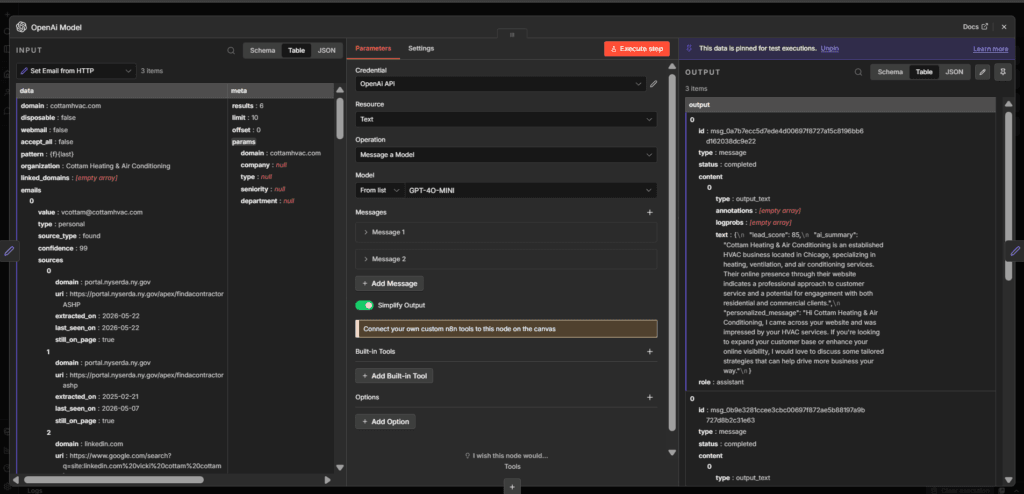
Step 6 — Write to Google Sheets
Finish with a Google Sheets node (operation Append or Update), matching on Lead ID so re-runs update existing rows instead of creating duplicates. Map your clean fields to columns: Lead Name, Company, Website, Email, Lead Score, AI Summary, Personalized Message, Source, Timestamp, Status.
Add one last IF (“Skip empty rows”) before it so a half-empty scrape result never writes a blank row.
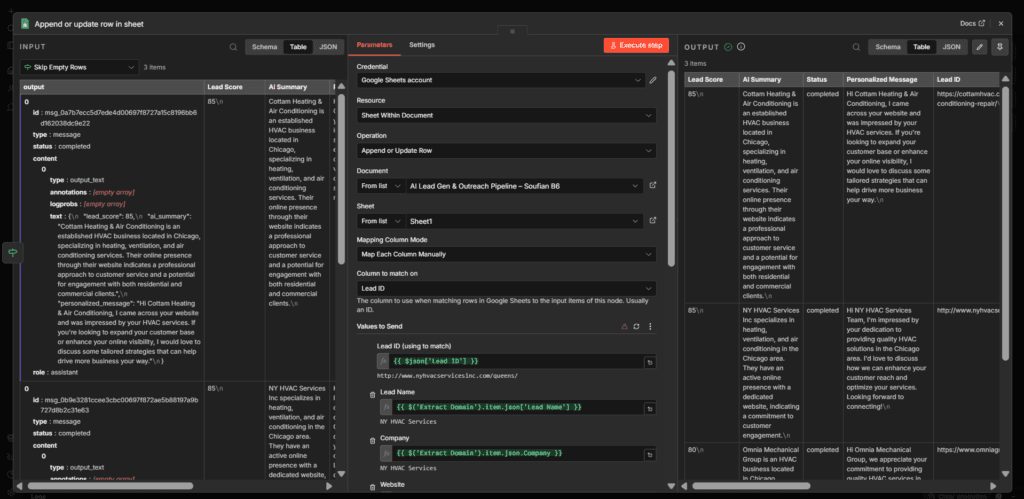
Run it. You now have a working lead generation automation.
This is the build we hand clients on day one. If you want it pointed at your niche and city — with the production fixes below already done — that’s a free automation audit away.
What breaks in production (the part nobody screenshots)
The build above works in a demo. Here’s what actually went wrong when we ran it for real, and how we hardened each one. These four fixes are the difference between a tutorial and a system.
1. Phone-only leads get silently dropped
A huge share of local businesses on Google Maps have no website — and our “has a website?” branch threw all of them away. For local service, those are often your best prospects (low digital maturity = more to fix). Fix: route no-website leads straight to the AI step with Email = N/A, score them on phone + reviews, and keep them for SMS/missed-call outreach instead of email.
2. The email API lies politely
Hunter returns N/A - Not found far more than you’d expect, and a low-confidence email is worse than none — it bounces and hurts your sender reputation. Fix: keep the confidence score, and don’t email anything under ~80 confidence. Treat those as call-only leads.
3. No error handling = one bad row kills the run
Out of the box, none of the nodes have error handling. One malformed scrape result or a Hunter rate-limit, and the whole execution stops — so you lose the 24 good leads because of 1 bad one. Fix: set retryOnFail on the Hunter and OpenAI nodes, and onError: continueRegularOutput so a single failure skips that row instead of the batch.
4. The AI confidently gets the facts wrong
Our first prompt was hardcoded to the wrong city — so the AI cheerfully described New York businesses as “located in Chicago.” It looked fine until you read it. Fix: never hardcode context the AI should read from the data; pull the city, name, and category from the actual row, and validate the JSON before you trust it.
That last one is why we say it on every build: AI is plumbing, not magic. The guardrails are the product.
Get the workflow
We packaged this whole pipeline as an importable n8n workflow — all nine nodes, pre-wired, with the production fixes above already in.
Import it (⋯ → Import from File), drop in your own Apify, Hunter, OpenAI, and Google credentials, and you’re running in about ten minutes.
Where this fits in your stack
A lead list is step one. The systems that actually win clients wire this into what happens next: the moment a high-score lead replies, it should trigger a follow-up sequence, a missed-call text-back, and a calendar link — automatically. That’s the same n8n logic, extended.
If you’ve made it this far, you’re not “researching automation” anymore — you’re deciding what to build first. That’s exactly the 30 minutes we spend in a free automation audit: we map your stack, find the one workflow with the fastest payback, and send you a written plan. No retainer, no pitch.
Related reading: n8n automation guide · How to automate lead generation · Build an AI agent in n8n · n8n vs Zapier