

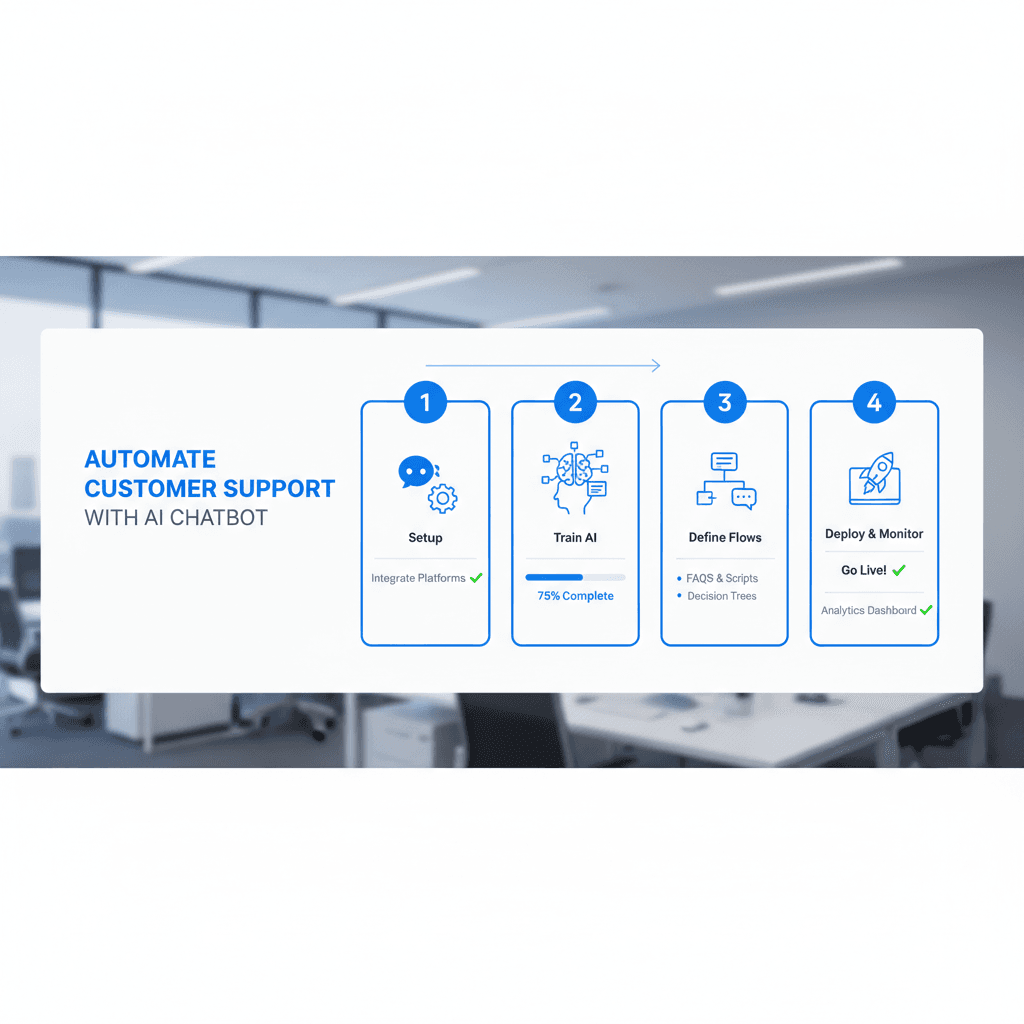
What You Will Learn: How to Automate Customer Support With AI Chatbot
If you want to automate customer support with AI chatbot technology for your e-commerce store, you have arrived at the right guide. In this tutorial, you will go from zero to a fully functioning AI-powered support system that answers questions, tracks orders, and handles returns — all without a human agent lifting a finger.
- Understand what an AI chatbot is and how it fits into your customer support stack
- Connect your chatbot to your e-commerce platform (Shopify, WooCommerce, or similar)
- Train your bot on your product catalog and store policies
- Configure automated workflows for order tracking, FAQs, and returns
- Deploy the chatbot to your website and messaging channels like WhatsApp
- Test, troubleshoot, and optimize for real-world performance
Prerequisites and Required Tools
Before you begin, make sure you have the following in place. You do not need to be a developer, but basic familiarity with your e-commerce platform’s admin dashboard will help enormously.
- An active e-commerce store (Shopify, WooCommerce, or BigCommerce recommended)
- Admin access to your store’s backend
- A chatbot platform account — this tutorial uses Chatbase (a no-code AI chatbot builder) as the primary tool, with references to Superchat for WhatsApp
- A Zapier or n8n account for workflow automation (free tiers available)
- Your store’s FAQ document, return policy, and shipping policy in text format
- Optional: A WhatsApp Business API account for multi-channel deployment
If you plan to build more complex, multi-step automations, our n8n Workflow Automation Services can handle the heavy lifting for you.
Concept Overview: How AI Chatbots Handle Customer Support
An AI chatbot is a software program that uses Natural Language Processing (NLP) — a branch of artificial intelligence that allows computers to understand and respond to human language — to hold conversations with customers. Unlike traditional rule-based bots that follow rigid decision trees, modern AI chatbots understand intent, context, and nuance.
When you automate customer support with AI chatbot systems, the general architecture works like this: a customer sends a message, the NLP engine interprets the intent (e.g., “Where is my order?”), the bot queries your store’s data via an API (Application Programming Interface — a connection between two software systems), retrieves the order status, and replies in plain language — all in under one second.
According to IBM, chatbots can completely answer up to 80% of typical customer inquiries, including product information, order status, or refund dates, without human interference. For e-commerce stores specifically, research shows a 65% decrease in support ticket volume within the first 60 days of deployment. That is not a marginal improvement — that is a transformation of your operations. To explore ready-built solutions, visit our AI Chatbot Solutions page.
Step 1: Set Up Your AI Chatbot Platform and Connect Your Store
The foundation of your ability to automate customer support with AI chatbot technology is the platform you choose and how cleanly it connects to your store data. Without a live data connection, your bot can only answer static questions — it cannot tell a customer where their specific order is right now.
Start by creating a free account on Chatbase (chatbase.co). Once logged in, click “New Chatbot” and select “E-commerce” as your use case. You will be prompted to name your chatbot — use something customer-facing like “Support Assistant” or your brand name.
Next, navigate to the Integrations tab. If you are on Shopify, you will see a one-click Shopify integration. Click “Connect Shopify Store,” enter your store’s myshopify.com URL, and authorize the connection. This grants the chatbot read access to your product catalog, order data, and customer records. For WooCommerce users, you will instead generate a REST API key (a unique authentication code) from your WordPress dashboard under WooCommerce → Settings → Advanced → REST API, then paste it into Chatbase.
Once connected, Chatbase will begin a crawl — an automated scan of your store’s pages to index product names, descriptions, prices, and policies. This crawl typically takes 5–15 minutes depending on your catalog size. You will see a progress bar in the dashboard. Do not close the browser tab until it completes.
Verify the connection worked by clicking “Test Data Source” and typing: “Do you carry [one of your product names]?” If the bot responds accurately with product details, your foundation is solid. This integration is the backbone that lets you automate customer support with AI chatbot workflows in every subsequent step. For broader automation architecture, see our Business Process Automation services.
Step 2: Train Your Chatbot on FAQs, Policies, and Product Knowledge
Connecting to your store gives the bot live data access, but training it on your specific knowledge base is what separates a generic bot from one that genuinely represents your brand. This step is where you upload your FAQ document, return policy, shipping policy, and any other content your support team regularly references.
In Chatbase, navigate to “Sources” → “Files.” Upload your FAQ document as a PDF or .txt file. Then click “Text” and paste in your return policy and shipping policy directly. Each piece of content you add becomes part of the bot’s knowledge base — the curated library of information it draws from when answering questions.
Next, go to “Sources” → “Website” and enter your store URL. Enable “Crawl entire site” so the bot indexes your blog posts, product pages, and help center articles. This is especially valuable for stores that publish detailed buying guides or size charts, as customers frequently ask questions that those pages already answer.
Now configure the bot’s system prompt — a set of background instructions that shape the bot’s personality and rules. Click “Settings” → “AI Instructions” and write something like: “You are a helpful support assistant for [Brand Name]. Always be friendly and concise. If you cannot find the answer, offer to connect the customer with a human agent. Never make up order details.”
The more precisely you train the bot, the more accurately it will automate customer support with AI chatbot responses. Companies that invest time in thorough training see the fastest reductions in ticket volume. To learn more about how leading e-commerce chatbots are trained, explore real-world case studies from top platforms.
Step 3: Configure Automated Workflows for Order Tracking and Returns
Static Q&A is useful, but the real power to automate customer support with AI chatbot systems comes from action-based workflows — automations that do not just retrieve information but actually trigger events in your store. This is where tools like n8n or Zapier come in.
In Chatbase, navigate to “Actions” → “Custom Actions.” Click “Add Action” and select “Order Lookup.” This action, when triggered by a customer asking “Where is my order?”, will call your Shopify API, pull the real-time order status, and display it in the chat. Configure it by mapping the input field to “order number or email” and the output to “tracking status, carrier, and estimated delivery date.”
For returns, create a second action: “Return Eligibility Check.” Set the logic to: if order date is within your return window AND order status is “delivered,” mark as eligible and display your returns portal link. If outside the window, display a polite decline message with your policy link.
Now open your n8n or Zapier account to build the escalation workflow. In n8n, create a new workflow triggered by a webhook (webhook = a real-time notification sent from one app to another when an event occurs). Set the trigger to fire when the chatbot tags a conversation as “needs human.” Connect this to your helpdesk (Zendesk, Freshdesk, or even Gmail) to automatically create a support ticket with the full chat transcript attached.
As one industry expert puts it: “Customers don’t just want information, they want outcomes. Whether it’s ‘Where’s my order?’ or ‘Can I cancel this before it ships?’, a good AI chatbot should both retrieve the right data and act on it.” This step is where you deliver exactly that. For advanced workflow design, explore our n8n Workflow Automation Services.
Step 4: Deploy Your Chatbot to Your Website and WhatsApp
With your bot trained and workflows configured, it is time to deploy — meaning make it live and accessible to real customers. You will deploy to two channels: your website (via a chat widget) and WhatsApp (via the WhatsApp Business API).
Website deployment: In Chatbase, go to “Deploy” → “Embed on Website.” You will see a small JavaScript snippet — a few lines of code. Copy this snippet and paste it just before the closing </body> tag in your store’s theme HTML. On Shopify, go to Online Store → Themes → Edit Code → theme.liquid and paste it there. Save and preview your store — you should see a chat bubble in the bottom-right corner.
Customize the widget’s appearance under “Appearance”: set your brand colors, upload your logo as the bot avatar, and write a greeting message such as “Hi! I’m here to help with orders, returns, and product questions. What can I help you with today?”
WhatsApp deployment: Open Superchat (or your chosen WhatsApp Business API provider) and connect your WhatsApp Business number. Import your Chatbase bot via API key integration. Once connected, any customer who messages your WhatsApp number will receive the same intelligent, automated responses. Research shows that companies using WhatsApp chatbots see 2.3 times higher completed purchases on their websites — a direct revenue impact from better support. To explore this further, learn more about WhatsApp automation strategies for e-commerce.
When you automate customer support with AI chatbot tools across multiple channels, you create a consistent, always-on support experience regardless of where your customer reaches out.
Step 5: Configure Escalation, Analytics, and Continuous Improvement
No AI chatbot is perfect on day one. The final setup step is building the feedback loop that makes your system smarter over time — and ensuring that when the bot cannot help, a human agent steps in seamlessly without the customer feeling abandoned.
Escalation setup: In Chatbase under “Settings” → “Human Handoff,” enable escalation and set the triggers: (1) customer explicitly asks for a human, (2) bot confidence score drops below 70% on two consecutive messages, or (3) the query involves a topic flagged as sensitive (billing disputes, legal complaints). When triggered, the bot should say: “I’m connecting you with a team member now. Here’s a summary of our conversation so you don’t have to repeat yourself.” This context-passing is critical — it is what makes escalation feel smooth rather than frustrating.
Analytics configuration: Navigate to “Analytics” in your dashboard. Track three core metrics weekly: Resolution Rate (percentage of conversations resolved without human intervention — aim for 70%+), Escalation Rate (should decrease week-over-week as you improve training), and Average Response Time (target under 1 minute, which research confirms is achievable with AI chatbots).
Continuous improvement: Every week, export your “Unanswered Questions” report — a log of queries the bot could not confidently answer. Add these as new FAQ entries or update your knowledge base to cover them. This iterative process is how companies achieve that 65% reduction in support tickets within 60 days. The bot gets measurably smarter each week you invest in it.
When you consistently automate customer support with AI chatbot improvements, you compound your efficiency gains. A bot handling 500 simultaneous chats that improves its resolution rate by just 5% each month will dramatically outperform a static deployment within a quarter.
Testing Your Work
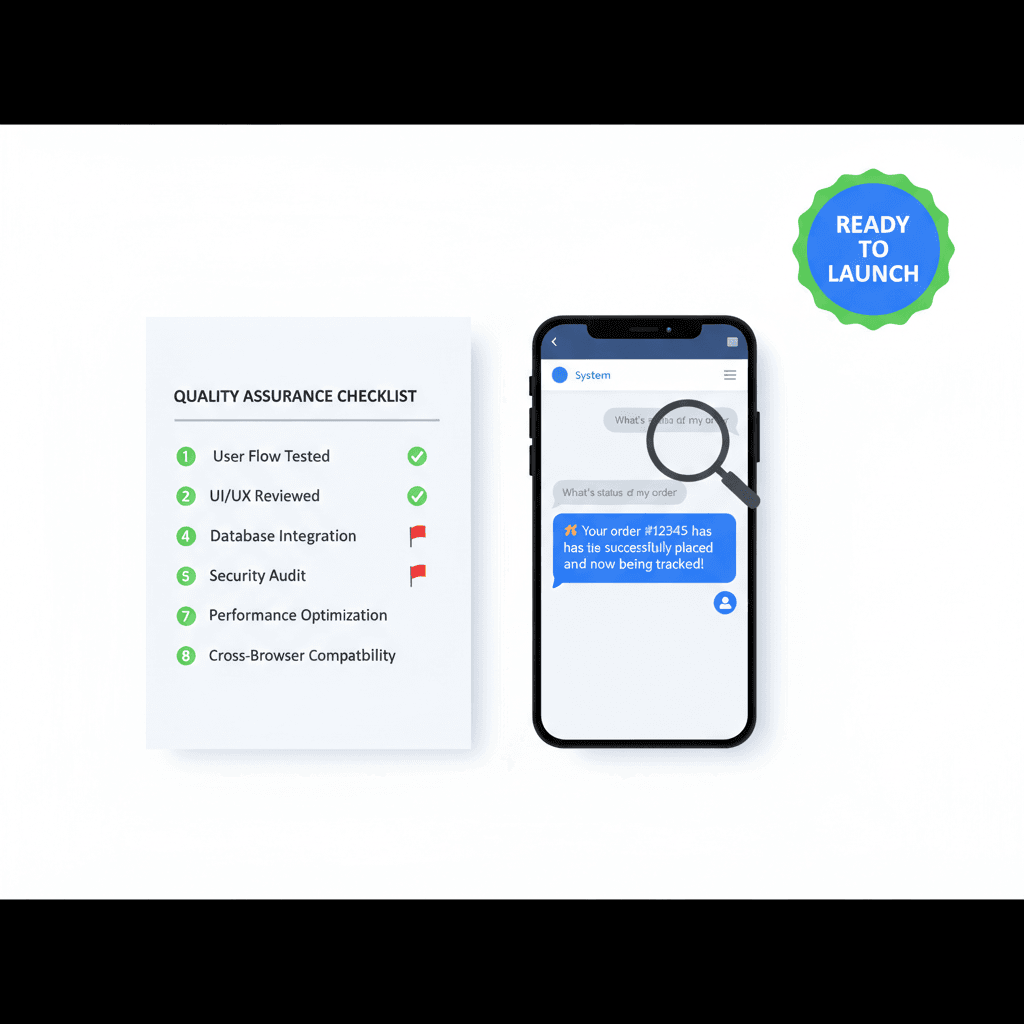
Before announcing your chatbot to customers, run a structured testing session. Open your live chat widget and simulate the ten most common support scenarios your team handles. Use this checklist:
- Ask for a real order status using a test order number — confirm the bot returns accurate tracking data
- Ask a return eligibility question for an order within your return window — confirm it shows eligible with the correct portal link
- Ask a return eligibility question for an expired order — confirm it politely declines
- Ask a product question covered in your FAQ — confirm the answer matches your document exactly
- Ask a question your bot has not been trained on — confirm it escalates gracefully rather than hallucinating an answer
- Type “I want to speak to a human” — confirm the handoff triggers immediately
- Test on mobile (both iOS and Android browsers) to confirm the widget renders correctly
- Send a WhatsApp message to your business number and confirm the bot responds within 5 seconds
Document any failures and return to Steps 2 or 3 to address them before going live. A well-tested deployment is the difference between a chatbot that builds customer trust and one that frustrates them.
Common Issues and Troubleshooting
| Issue | Likely Cause | Solution |
|---|---|---|
| Bot returns “I don’t know” for product questions | Store crawl did not complete or product pages were blocked by robots.txt | Re-run the crawl; check robots.txt to ensure Chatbase’s crawler is not blocked |
| Order lookup returns no data | API key expired or incorrect permissions set | Regenerate your Shopify/WooCommerce API key and reconnect in Chatbase integrations |
| Chat widget not appearing on website | JavaScript snippet placed in wrong location or theme not saved | Confirm snippet is inside </body> tag; clear browser cache and reload |
| WhatsApp messages not receiving bot responses | WhatsApp Business API not fully verified or webhook URL mismatch | Check API verification status in Meta Business Manager; confirm webhook URL matches exactly |
| Bot escalates too frequently (high escalation rate) | Knowledge base is thin; bot lacks confidence on common queries | Export unanswered questions report and add missing content to your knowledge base |
| Bot gives outdated product information | Knowledge base not refreshed after catalog changes | Schedule weekly automated re-crawls in Chatbase settings |
| Human handoff not creating helpdesk tickets | n8n/Zapier webhook trigger is inactive or disconnected | Open your workflow tool, check webhook status, and re-activate the trigger node |
Frequently Asked Questions
How long does it take to automate customer support with AI chatbot tools from scratch?
For a straightforward e-commerce store with an existing FAQ document and Shopify integration, most businesses complete the full setup in 4–8 hours spread across one to two days. The crawl and training phase takes the most time. Complex multi-channel deployments with custom n8n workflows may take a full week. The investment pays back quickly — most stores see measurable ticket reduction within the first two weeks of going live.
Do I need coding skills to set this up?
No. The core setup described in this tutorial is entirely no-code. The only step that resembles coding is pasting the JavaScript snippet into your theme file, which requires copying and pasting a single block of text. If you are on Shopify, there is even a one-click app installation option that eliminates that step entirely. Advanced custom actions and n8n workflows may require light configuration, but no programming knowledge is needed.
What happens when the chatbot cannot answer a question?
A well-configured bot will never simply fail silently. When confidence drops below your set threshold, the bot triggers your escalation workflow, passes the full conversation transcript to a human agent, and notifies the customer that a team member will follow up. This handoff with context is what prevents customers from feeling like they are talking to a wall. The goal when you automate customer support with AI chatbot systems is not to replace humans entirely — it is to reserve human attention for the conversations that genuinely need it.
Can I automate customer support with AI chatbot technology on a small store with limited traffic?
Absolutely. In fact, small stores often benefit the most because their support teams are smallest and most stretched. Even if you only receive 50 support inquiries per week, automating 70–80% of them frees up significant time for growth activities. Most chatbot platforms offer free or low-cost tiers that are perfectly sized for small stores. The infrastructure scales with you — the same setup that handles 50 chats a week can handle 5,000 without any architectural changes.
How do I keep the chatbot’s information accurate as my store changes?
Schedule automated weekly re-crawls in your chatbot platform’s settings. Any time you update your return policy, add new products, or change shipping rates, also update the corresponding text in your knowledge base manually. Set a recurring calendar reminder to review your unanswered questions report monthly and add new content accordingly. Treating your knowledge base like a living document — not a one-time setup task — is the single most important practice for long-term accuracy.
Next Steps and Advanced Tips to Automate Customer Support With AI Chatbot Systems
Now that your core system is live, here are the advanced moves that separate good deployments from exceptional ones:
- Proactive messaging: Configure your chatbot to send outbound messages — for example, automatically messaging a customer on WhatsApp when their order ships, before they even think to ask. This eliminates “Where is my order?” queries before they are submitted.
- Personalized product recommendations: Train your bot with a custom action that queries your best-sellers and cross-sell logic. When a customer asks “What goes with this jacket?”, the bot can suggest matching items with direct purchase links — turning support into a sales channel.
- Multilingual support: Modern NLP models handle multiple languages natively. Enable auto-detection in your chatbot settings so international customers receive responses in their own language without any additional training.
- A/B test your greeting messages: Small changes to your opening message (“How can I help?” vs. “Ask me anything about your order”) can meaningfully affect engagement rates. Most platforms support A/B testing at the widget level.
- Integrate with your CRM: Connect your chatbot to your CRM (Customer Relationship Management software) so that every conversation is logged against the customer’s profile. This gives your human agents full context on repeat customers and enables personalized follow-ups.
For businesses ready to build truly sophisticated automation ecosystems, our AI Chatbot Solutions and Business Process Automation services offer done-for-you implementation with ongoing optimization.
Conclusion
You now have a complete, step-by-step blueprint to automate customer support with AI chatbot technology — from platform setup and knowledge base training, through workflow automation and multi-channel deployment, to testing, troubleshooting, and continuous improvement. The results are not theoretical: businesses that automate customer support with AI chatbot systems consistently report over 60% reductions in support ticket volume, sub-one-minute response times, and meaningful revenue lifts from better customer experiences. The technology is accessible, the setup is achievable without a developer, and the ROI arrives within weeks, not months. Start with Step 1 today, and by this time next week, your store can be delivering the kind of instant, accurate, always-on support that was once only possible with a large human team.
Your Team Is Drowning In Repetitive Tasks
We automate them with AI so you can focus on growth